
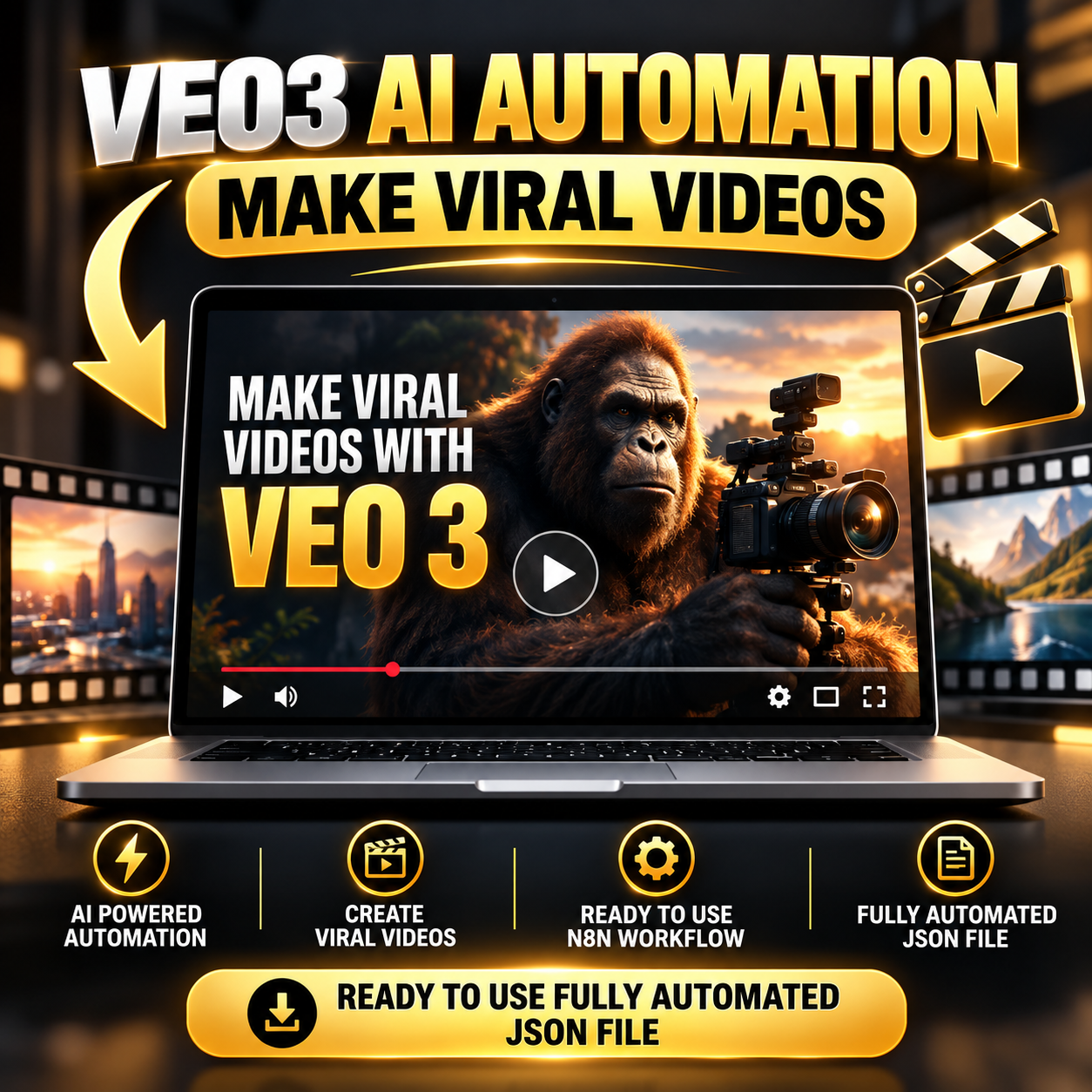
AI Video Generation Workflow for n8n – VEO 3 Automation Template
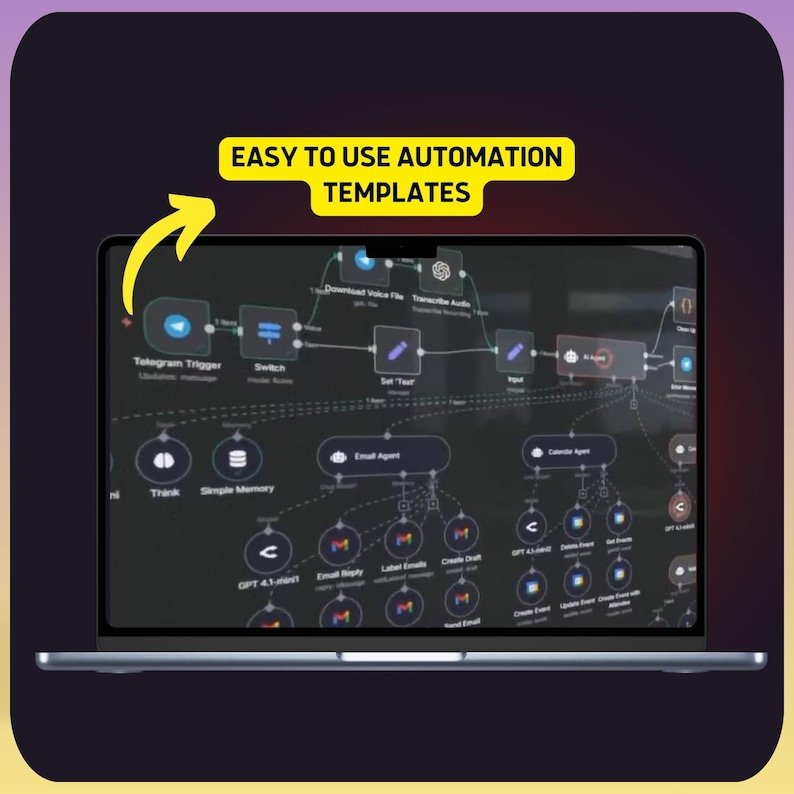
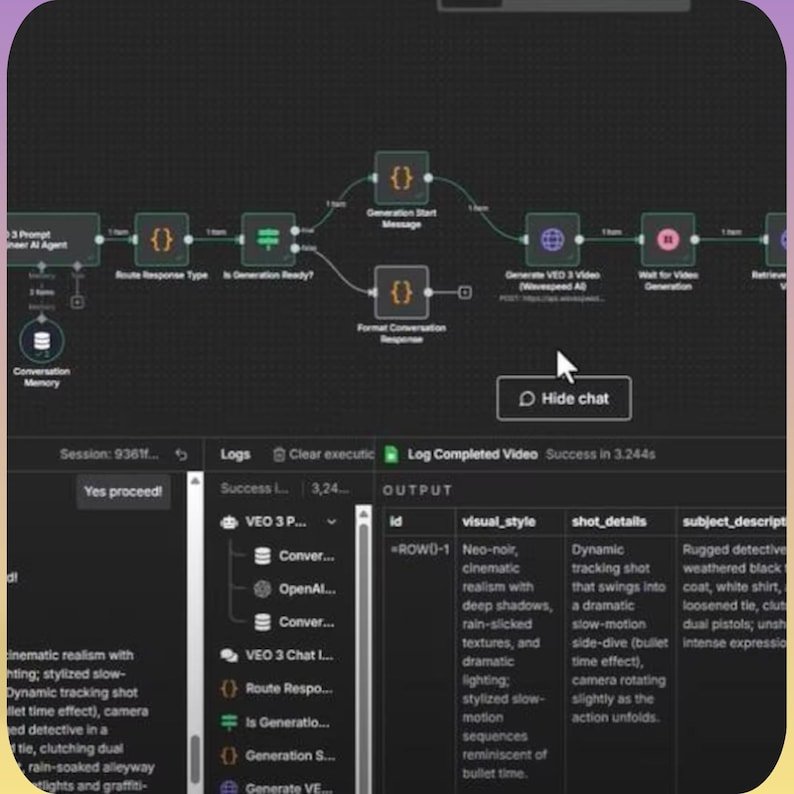
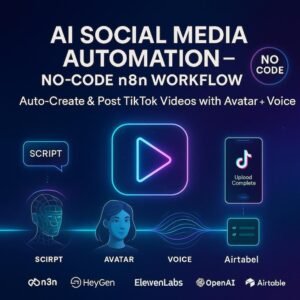
Streamline your AI video creation process with this ready-to-use n8n JSON workflow designed for VEO 3 video generation.
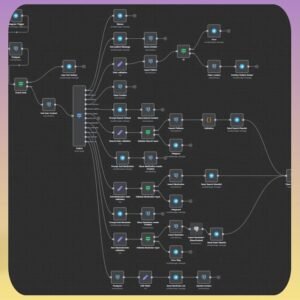
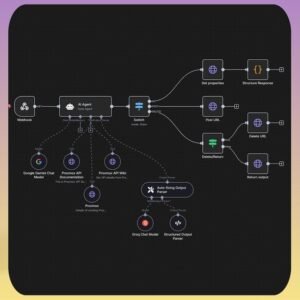
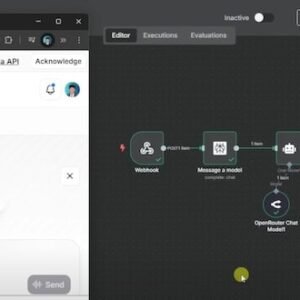
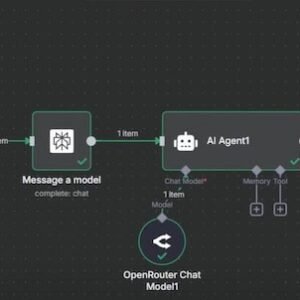
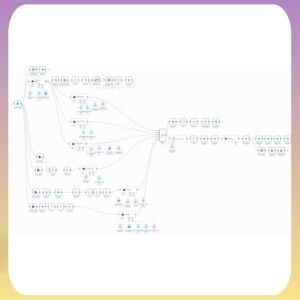
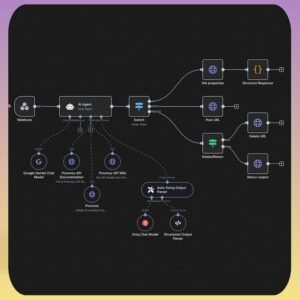
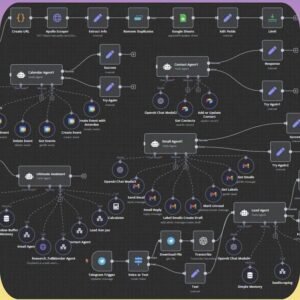
This automation helps simplify the entire process, from collecting creative ideas and generating detailed prompts to creating AI videos and organizing the final outputs. It’s designed for creators, marketers, entrepreneurs, and automation enthusiasts who want an efficient video production system without building a workflow from scratch.
Key Features
- AI-powered agent for creating detailed VEO 3 video prompts
- Manual Mode for greater control over creative inputs
- Auto Theme Mode for faster automated prompt creation
- Supports video generation through VEO 3 API and WaveSpeed AI
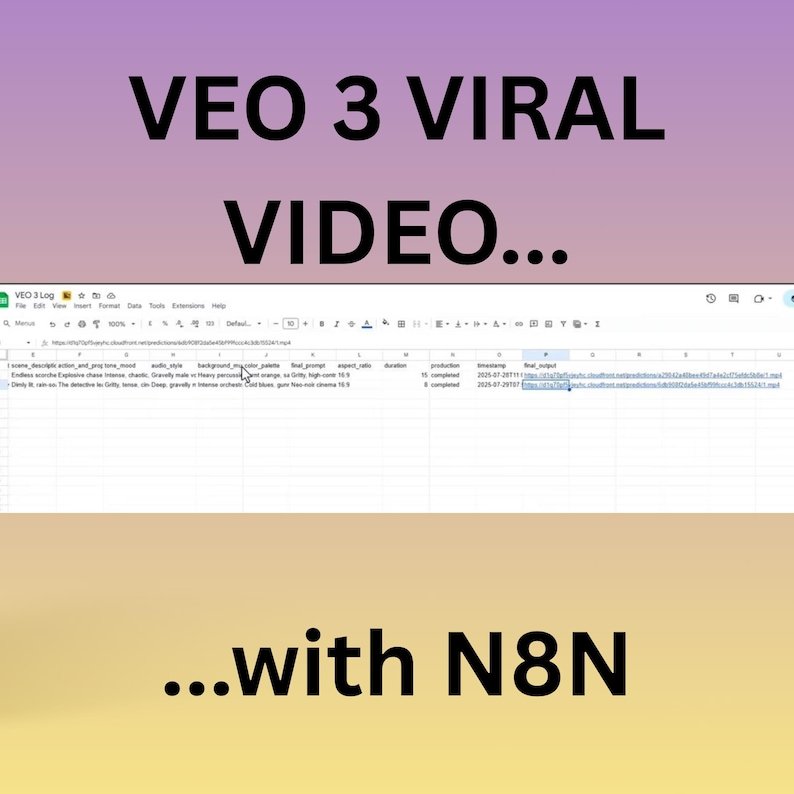
- Automatically records video links and creative details in Google Sheets
- Built entirely inside n8n
- Fully customizable to match your workflow
- No coding required for basic setup and customization
What You’ll Receive
- 1 n8n automation workflow in JSON format
- Ready-to-import workflow structure
- Step-by-step setup and import instructions
- Configurable AI video generation system
Perfect For
- Digital creators
- Social media marketers
- AI video creators
- Short-form content producers
- Entrepreneurs and agencies
- Automation enthusiasts
- Anyone looking to simplify AI-powered video production
Setup Guide
1. Requirements
Before getting started, you’ll need:
- An active n8n account, either Cloud or self-hosted
- Access to the required VEO 3 API
- Google Sheets API credentials for output logging
- The included n8n JSON workflow file
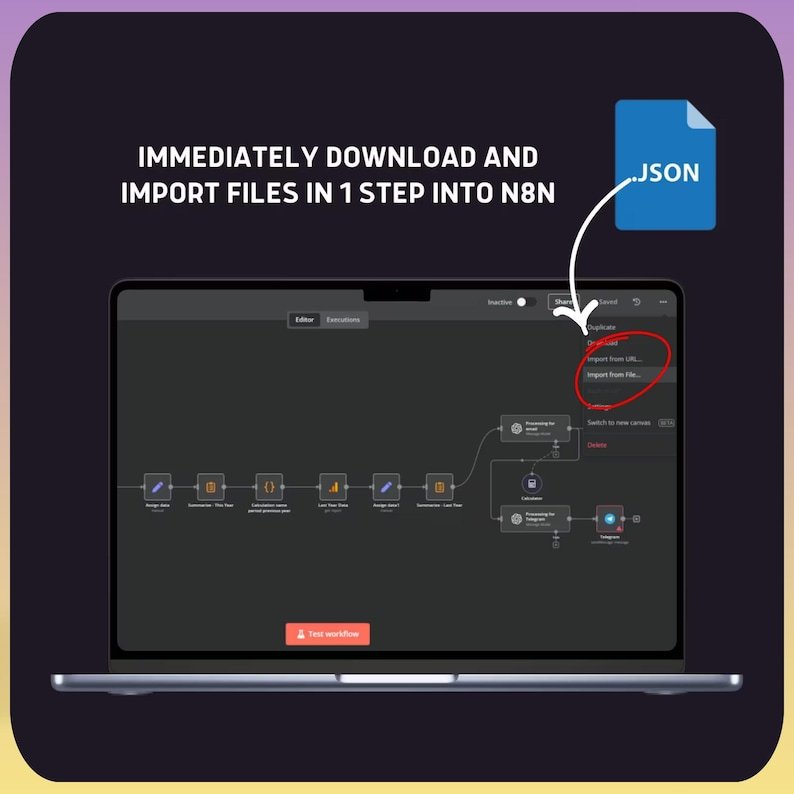
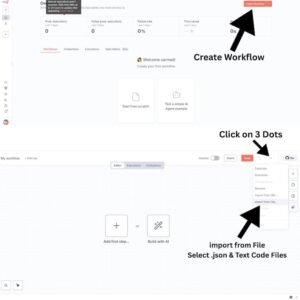
2. Import the Workflow
Log in to your n8n dashboard and open the Workflows section.
Select the option to import a workflow, upload the provided JSON file, and save it to your account.
3. Connect Your Credentials
Inside n8n, configure the necessary credentials for:
- VEO 3 API / HTTP requests
- Google Sheets using OAuth2 or a Service Account
- Any additional services required by your chosen workflow configuration
Connect each credential to its corresponding node before running the automation.
4. Customize Your Video Settings
Use Manual Mode when you want more control over elements such as:
- Scene details
- Visual style
- Mood and atmosphere
- Audio preferences
- Voiceover settings
- Creative direction
For a faster workflow, use Auto Theme Mode to generate creative prompts automatically.
5. Generate Your Videos
Once everything is configured, execute the workflow.
The AI automation prepares the prompt, sends the required requests to the connected video-generation service, retrieves the resulting video output, and records relevant information in Google Sheets.
You can then access the generated video through the resulting output link.
Optional Customizations
You can expand the workflow by adding:
- Email notifications
- Custom Google Sheets columns
- Webhook triggers
- Scheduled automations
- Additional AI tools or services
- Content publishing steps
- Other n8n integrations
Important Information
This is a digital product only. No physical item will be shipped.
The workflow requires third-party services and APIs to operate. Some services may require separate accounts, API access, credits, or paid subscriptions.
API availability, pricing, limits, and features are controlled by their respective providers and may change over time.
Start Creating with AI Automation
Turn a multi-step AI video production process into one organized n8n workflow. Import the template, connect your services, customize your settings, and start building your own automated video creation system.






























 No products in the cart.
Reviews
There are no reviews yet.